Your Complete WordPress Maintenance Checklist
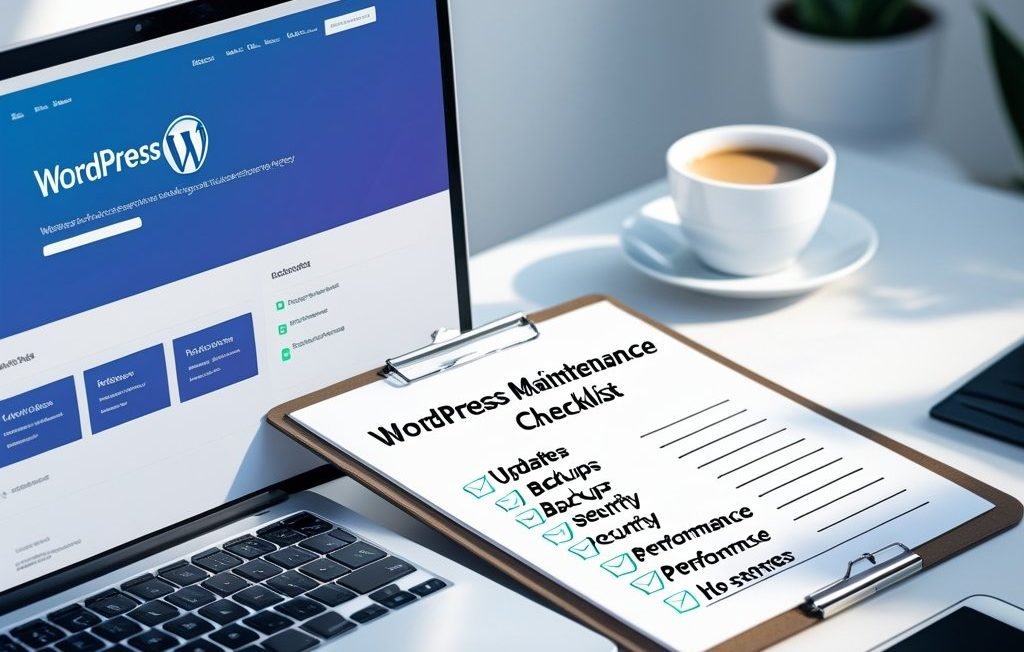
Think of your WordPress website like a bicycle. If you ride it every day but never clean it, oil the chain, or check the tires, what happens? It gets slow, makes weird noises, and eventually stops working properly. Your WordPress site is exactly the same! That’s why having a simple wordpress maintenance checklist is super important.
I’m going to show you exactly what you need to do to keep your website happy and healthy. Don’t worry – none of this is complicated. If you can ride a bike, you can definitely maintain a WordPress site!
Why Should You Care About WordPress Maintenance?
Before we jump into the checklist, let me tell you a quick story. My friend had a really cool website about dinosaurs. He spent weeks making it perfect, but then he never touched it again. Six months later, hackers broke in and filled his dinosaur site with spam about weird shoes. All his hard work was ruined because he didn’t do basic maintenance.
Here’s what happens when you ignore your WordPress site:
Your website becomes super slow (like trying to run with your shoelaces tied together). Bad guys can break in and mess things up. Your site might crash and show scary error messages. You could lose all your content if something breaks. Google stops showing your site to people searching online.
Sounds scary, right? But the good news is that preventing all this takes maybe 30 minutes a week. That’s less time than it takes to watch your favorite cartoon!
Your Weekly WordPress Maintenance Tasks
These are things you should do every single week. Set a reminder on your phone for Sunday evening or whenever works for you.
Check if Everything Still Works
Click around your website like you’re a visitor. Do all the buttons work? Can you still contact you through the contact form? Do pictures show up properly? Sometimes things break without you knowing, so being a detective once a week helps you catch problems early.
Look at Your Backups
Backups are like save points in a video game. If something goes wrong, you can go back to when everything was working. Make sure your backup plugin is actually creating backups. You’d be surprised how many people think they have backups but don’t actually check if they’re working!
Scan for Weird Stuff
Use a security plugin to scan for viruses and hacking attempts. It’s like checking under your bed for monsters, except these monsters are real and they want to steal your website. A quick scan takes about 2 minutes and gives you peace of mind.
Monthly WordPress Maintenance Checklist
Once a month, you need to do some deeper cleaning. Think of it like brushing your teeth daily but going to the dentist monthly.
Update Everything (But Smart-Like)
WordPress releases updates to fix bugs and add cool new features. Your plugins and themes get updates too. But here’s the trick – don’t just click update on everything at once. That’s like eating your entire Halloween candy in one sitting. Bad idea.
Here’s the smart way: Make a backup first (remember those save points?). Update WordPress core first. Then update your plugins one at a time. Check if your site still works after each update. If something breaks, you’ll know exactly which update caused it.
Delete Old Junk
Your WordPress database is like your backpack. If you never clean it out, it gets full of old homework, broken pencils, and candy wrappers. Go delete old spam comments, unused plugins, and post revisions you don’t need. Your site will run faster, and you’ll feel good about decluttering.
Check Your Site Speed
Nobody likes slow websites. If your site takes more than 3 seconds to load, people leave. Use free tools like Google PageSpeed Insights to check how fast your site loads. It’ll also tell you what’s making it slow. Maybe you have images that are way too big, or too many plugins running in the background.
Quarterly WordPress Tasks (Every 3 Months)
Every three months, you want to do some bigger maintenance jobs. Mark your calendar!
Review Your Plugins
Are you using all those plugins you installed? If you haven’t used a plugin in months, delete it. Each plugin you have is another thing that could break or slow down your site. I’ve seen websites with 50+ plugins when they really only needed 10. Less is more!
Update Your Content
Go through your old blog posts and pages. Are the links still working? Is the information still accurate? If you wrote about “the best phones of 2020” and it’s now 2025, maybe update that article! Fresh content makes Google happy, and happy Google means more visitors.
Check Your Security Settings
Change your passwords (I know, boring but important). Make sure your admin username isn’t “admin” because that’s the first thing hackers try. Check who has access to your site. Maybe that person who helped you two years ago doesn’t need access anymore.
The Big Yearly Maintenance Jobs
Once a year, you should do these bigger tasks. Pick a slow day when you have a couple of hours.
Deep Clean Your Database
Think of this as spring cleaning for your website. Use a plugin like WP-Optimize to clean out all the junk that’s built up over the year. Remove old post revisions, spam comments, and database tables from plugins you deleted months ago.
Review Your Hosting Plan
Is your website getting more visitors than when you started? You might need to upgrade your hosting. It’s like when you outgrow your shoes – you need bigger ones! On the flip side, if your traffic went down, maybe you can save money with a smaller plan.
Test Everything on Mobile
More people browse websites on phones than computers now. Pull out your phone and actually use your website. Can you read the text? Do the buttons work? Is everything the right size? If your site looks weird on mobile, you’re losing visitors.
Update Your Backup Strategy
Where are your backups stored? Are they just on the same server as your website? That’s like keeping your diary backup in the same room as your original diary – if there’s a fire, both are gone! Store backups in at least two places: your hosting server and somewhere else like Google Drive or Dropbox.
Making Life Easier with Automation
Here’s a secret: you don’t have to do all this stuff manually. You can set up plugins to do most of it automatically!
Get a backup plugin that runs automatically (like UpdraftPlus or BackWPup). Use a security plugin that scans your site daily without you having to remember. Set up automatic updates for minor WordPress versions (but always do major updates manually to be safe).
If all this still sounds like too much work, that’s totally okay! Some people love tinkering with their websites, and others just want to focus on creating content. If you’re in the second group, you might want professional help with WordPress maintenance services that handle all this stuff for you while you sleep.
Common Mistakes People Make
Let me save you from some headaches I’ve seen other people go through.
Never updating anything because “it works fine.” That’s like never changing your bike’s oil because it still rides. It works until it doesn’t, and then you’re stuck. Updates include security fixes that keep bad guys out.
Updating everything at once without a backup. This is playing Russian roulette with your website. Always, always, ALWAYS backup before updating.
Using too many plugins. Each plugin is another thing that could conflict with something else. Stick to what you actually need and use.
Ignoring mobile users. If your site looks terrible on phones, you’re throwing away half your potential visitors.
Using “admin” as a username. This is like leaving your front door unlocked with a sign that says “Come on in!” Hackers try “admin” first because they know beginners use it.
Your Simple Action Plan
Okay, so you’ve read all this and you’re thinking “That’s a lot!” Don’t panic. Here’s how to start:
This week, just do these three things: Make sure you have a backup plugin installed and working. Check if you have any pending updates. Walk through your website and make sure everything works.
That’s it! You don’t have to do everything at once. Next week, you can tackle a few more items from the checklist. The important thing is to start somewhere.
Signs Your Site Needs Immediate Attention
Here’s a secret: you don’t have to do all this stuff manually. You can set up plugins to do most of it automatically!
Get a backup plugin that runs automatically (like UpdraftPlus or BackWPup). Use a security plugin that scans your site daily without you having to remember. Set up automatic updates for minor WordPress versions (but always do major updates manually to be safe).
If all this still sounds like too much work, that’s totally okay! Some people love tinkering with their websites, and others just want to focus on creating content. If you’re in the second group, you might want professional help with WordPress maintenance services that handle all this stuff for you while you sleep.
The Bottom Line
Taking care of your WordPress site doesn’t have to be scary or complicated. It’s just like taking care of anything else you value – a little bit of regular attention goes a long way.
Start with the basics: backups, updates, and security checks. Once you’ve got those down, add more tasks to your routine. Before you know it, website maintenance will feel as natural as brushing your teeth.
Remember, a well-maintained website is a fast website, a secure website, and a website that actually helps your visitors instead of frustrating them. Your future self will thank you for taking 30 minutes each week to keep things running smoothly.
Now stop reading and go check if you have a backup! Seriously, do it right now. I’ll wait.
Got your backup? Awesome! You just completed the most important item on your wordpress maintenance checklist. Everything else is just building on that foundation. You’ve got this!

Zeeshan is a seasoned web developer with over 8+ years of experience, specializing in WordPress, Themosis, and Laravel. customized web solutions. Through his website, zeeshanwebexpert.com, Zeeshan offers professional web services, ensuring long-term solutions for clients.