Introduction: Gravity Forms Conditional Logic Issues—Why It’s Important to Fix Them
If you’ve been using Gravity Forms to create customized, user-friendly forms, you’ve likely encountered conditional logic—one of its most powerful features. With Gravity Forms conditional logic, you can control what fields appear based on the user’s input, creating dynamic and efficient forms. However, if you find that your Gravity Forms conditional logic is not working, it can lead to serious form functionality issues.
This blog post will walk you through a step-by-step process on how to fix conditional logic in Gravity Forms, troubleshoot common problems, and provide practical tips for resolving Gravity Forms field logic issues. Whether your Gravity Forms hide/show fields not working, or your conditional fields aren’t showing, this comprehensive troubleshooting guide will ensure your forms work flawlessly.
Common Causes Behind Gravity Forms Conditional Logic Not Working
When Gravity Forms conditional logic not working or form logic not triggering, it’s essential to understand the root causes of these issues. Gravity Forms is highly customizable, but like any advanced tool, it can encounter hiccups due to conflicting settings or errors.
There are several potential causes for conditional logic problems in Gravity Forms, including misconfigured settings, outdated plugins, or conflicts with JavaScript. Sometimes, even a small error in the setup can prevent conditional fields from showing, or cause your form to behave unpredictably. Let’s break down some of the most common reasons why conditional logic in Gravity Forms may fail to trigger as expected.
Verifying Conditional Logic Settings in Gravity Forms
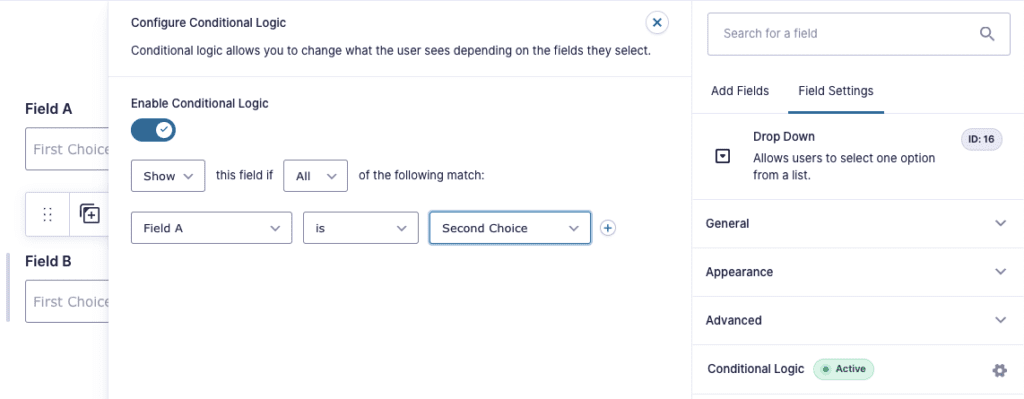
Before diving into complex troubleshooting methods, the first step in debugging conditional logic in Gravity Forms is to ensure your settings are correct. Gravity Forms provides a straightforward interface for configuring conditional logic on each field, but it’s easy to overlook small details.
Make sure the conditions you’ve set are logically sound. For example, ensure the field you’re hiding or showing is correctly linked to the appropriate field condition. Incorrect field mappings or logic configurations can easily lead to conditional fields not showing in Gravity Forms. Take a moment to review your settings carefully and verify each rule is accurate.
Clearing Cache to Resolve JavaScript Conflicts
One of the most common reasons for Gravity Forms conditional logic not working is a JavaScript conflict. JavaScript conflicts often arise when other scripts on your website interfere with Gravity Forms’ functionality, preventing form logic from triggering correctly. These conflicts can be difficult to spot, but they frequently cause the form to fail when trying to display or hide fields based on conditions.
To resolve this, clear the cache of your website and browser. If you’re using a caching plugin, it’s also helpful to clear its cache. After clearing the cache, refresh the page and check if the conditional logic in Gravity Forms starts working as expected. If the issue persists, you may need to troubleshoot potential conflicts with other scripts or plugins.
Updating Gravity Forms and Other Plugins
Outdated plugins are a common culprit behind Gravity Forms conditional logic problems. When Gravity Forms or other essential plugins on your website are outdated, they may be incompatible with one another, causing unexpected behavior.
Ensure your Gravity Forms plugin is up-to-date, as well as any add-ons or other related plugins. If you’re still encountering issues after updating, it’s time to explore other troubleshooting steps, such as disabling conflicting plugins or testing your form in a fresh environment. By keeping everything updated, you’ll reduce the chances of facing form logic not triggering issues.
Disabling Conflicting Plugins and Themes
Another major source of Gravity Forms field logic issues is conflicts between Gravity Forms and other plugins or your website’s theme. Some plugins, particularly those that modify JavaScript or CSS, can interfere with the way Gravity Forms conditional logic operates.
To check for conflicts, start by disabling all other plugins except Gravity Forms. If the issue resolves, reactivate each plugin one at a time, checking after each activation to see if the problem returns. If the issue persists even with all plugins disabled, you might want to try switching to a default WordPress theme temporarily to rule out theme conflicts. This process can help isolate the source of Gravity Forms hide/show fields not working.
Checking for JavaScript Errors in the Console
When dealing with Gravity Forms conditional logic JavaScript conflict issues, examining the browser’s console for errors can be incredibly helpful. JavaScript errors can interfere with how conditional logic rules are processed, preventing fields from being displayed or hidden as intended.
To check for JavaScript errors, open your browser’s developer tools (press F12 or right-click and select “Inspect”). Navigate to the “Console” tab, and refresh your page. Any JavaScript errors will be displayed in red. If you see errors related to Gravity Forms or other plugins, this is likely the source of your conditional logic not displaying in Gravity Forms.
Enabling Conditional Logic in Gravity Forms
If you’ve never set up conditional logic in Gravity Forms, it’s crucial to make sure that the feature is actually enabled for the specific fields. Conditional logic is a feature that must be activated on a per-field basis, and if it’s not properly enabled, the logic won’t work.
To enable conditional logic in Gravity Forms, go to the field settings and locate the “Conditional Logic” section. Check the box to activate the feature, and set the conditions under which the field should be shown or hidden. Without this step, the form will not respond to user input and the logic will fail to trigger.
Advanced Troubleshooting Tips for Gravity Forms Logic Issues
If you’ve gone through the basic troubleshooting steps and the issue still isn’t resolved, it’s time to take a deeper dive. Here are some advanced tips for fixing Gravity Forms conditional logic problems:
- Test in Safe Mode: Temporarily disable all other plugins and switch to a default WordPress theme (e.g., Twenty Twenty-One) to isolate the issue.
- Use a Fresh Form: Sometimes, form corruption can cause issues. Try creating a new form and see if the problem persists.
- Check the Server: If you’re on shared hosting, sometimes server configurations or limits can affect form functionality. Check your server error logs for any signs of issues related to Gravity Forms.
By following these tips, you’ll have a better chance of resolving Gravity Forms field logic issues that may not be immediately obvious.
Conclusion and Final Thoughts
Resolving Gravity Forms conditional logic not working issues can be frustrating, but with the right approach, you can ensure that your forms work flawlessly. By following this comprehensive Gravity Forms conditional logic troubleshooting guide, you can pinpoint the problem and take steps to fix it, whether it’s an issue with settings, a plugin conflict, or JavaScript errors.
Remember, debugging conditional logic in Gravity Forms requires patience and a methodical approach. By enabling the right settings, keeping your plugins updated, and checking for conflicts, you’ll be able to keep your forms running smoothly. And, of course, if you’re ever stuck, don’t hesitate to seek professional assistance to ensure your forms are working exactly how they should.

Zeeshan is a seasoned web developer with over 8+ years of experience, specializing in WordPress, Themosis, and Laravel. customized web solutions. Through his website, zeeshanwebexpert.com, Zeeshan offers professional web services, ensuring long-term solutions for clients.