A 500 Internal Server Error on your WordPress site can be frustrating. It can also affect your website’s stability and user experience. You need a reliable guide to fix these errors effectively.
Every website can face a 500 Internal Server Error. It’s important to have a plan to fix it fast. With the right steps, you can solve the issue quickly. This guide will help you troubleshoot and fix 500 Internal Server Errors on your WordPress site.
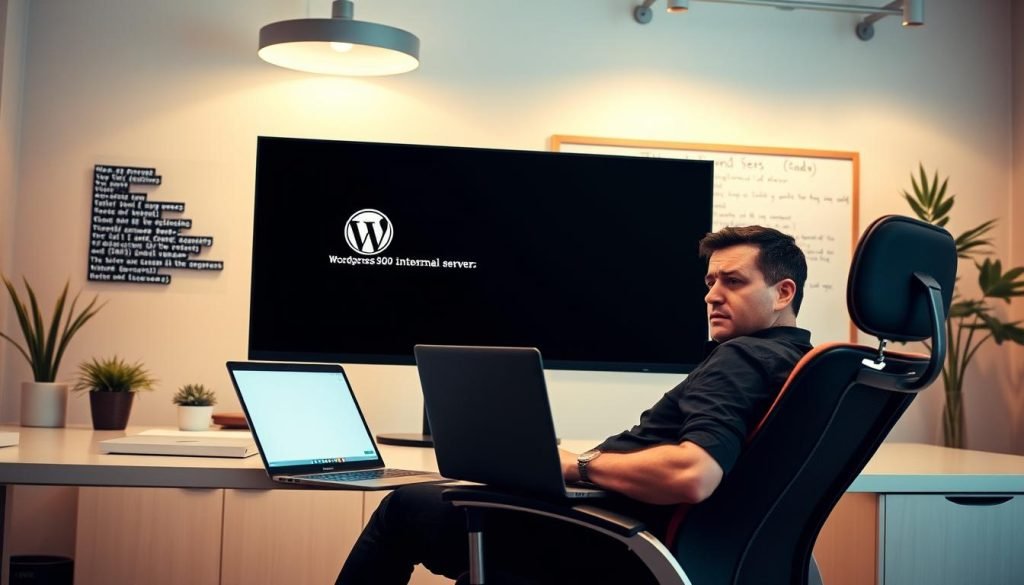
This guide will teach you how to identify and fix common causes of 500 Internal Server Errors. You’ll learn how to keep your website stable and secure. With the right tools and knowledge, you can provide a better experience for your website visitors.
Introduction to Troubleshooting
Troubleshooting a 500 Internal Server Error needs a systematic approach. This guide will give you the tools and knowledge to solve these errors. You’ll learn how to keep your website running smoothly.
Key Takeaways
- 500 Internal Server Errors can impact your website’s stability and user experience
- A reliable troubleshooting guide is essential to resolve these errors
- WordPress error solutions can help you identify and fix common causes of 500 Internal Server Errors
- A systematic approach to troubleshooting is necessary to resolve these errors
- Minimizing downtime is crucial to ensure your website remains accessible to visitors
- A comprehensive troubleshooting guide can help you resolve 500 Internal Server Errors quickly and effectively
Understanding the 500 Internal Server Error in WordPress
The 500 Internal Server Error is a common problem on WordPress sites. It can upset both website owners and visitors. To fix this error, knowing its causes and signs is key. Error identification is crucial, as it points to the main issue. Often, the problem lies with plugins, themes, or server settings.
Diagnosing the 500 Internal Server Error in WordPress is tough. It can stem from many things like damaged files, wrong permissions, or too much server load. The error message usually doesn’t tell you what’s wrong, making error identification hard.
Common signs of the 500 Internal Server Error include a blank page, a “server error” message, or a “500 error” message. Sometimes, the error only happens sometimes, making it harder to find. Knowing the usual signs and variations helps you start fixing the problem and getting your site back up.
When you’re trying to solve the 500 Internal Server Error, consider these important points:
- Check the server logs for error messages
- Make sure plugins and themes work well together
- Check if the server is set up right
- Look for any damaged files or folders
First Steps Before Troubleshooting
When you see a 500 Internal Server Error on your WordPress site, start with some basic steps. WordPress maintenance is key to keeping your site stable. Look for recent changes like plugin or theme updates, as they can cause issues. Having a backup of your site makes troubleshooting easier.
Here are some important steps to take:
- Check for recent updates or changes to your site
- Make sure you have a backup of your site
- Look at your site’s error logs for clues
These steps help you find the error’s cause and make troubleshooting easier. Regular WordPress maintenance can also prevent errors. Keeping up with updates and backups keeps your site stable and secure.
By following these steps, you’re ready to tackle the 500 Internal Server Error on your WordPress site. Always remember to prioritize WordPress maintenance and take these initial steps for a smooth troubleshooting process.
Essential Backup Procedures for Safe Problem-Solving
Before you start troubleshooting, make a server error backup to avoid losing data. This step keeps a safe copy of your website. You can restore it if any issues arise during troubleshooting. A full website backup is key, covering all files, databases, and settings.
To make a full website backup, you can use tools like plugins or manual backups via FTP. For database backup methods, phpMyAdmin or command-line tools work well. It’s vital to keep your backup files in secure storage, like an external hard drive or cloud service, to keep them safe.
- Using strong passwords and encryption
- Storing backups in multiple locations
- Regularly updating and verifying backups
By taking these steps, you can keep your website safe during troubleshooting. Always use database backup methods and keep your backups in secure storage to safeguard your data.
Quick Fixes for Common 500 Error Causes
When you face a 500 Internal Server Error, it’s key to know some error fixes and troubleshooting strategies. These quick solutions can help you find and fix common problems. This way, you can get your website running again fast.
Some usual reasons for the 500 error include damaged .htaccess files, too much PHP memory use, and problems with plugins or themes. Here are a few things you can do:
- Look over your .htaccess file for mistakes or damage. If needed, restore a backup.
- Boost your PHP memory limit to avoid running out.
- Turn off any new plugins or themes to see if they’re the problem.
By using these error fixes and troubleshooting strategies, you can quickly find and fix common 500 error problems. This helps keep your website running smoothly and cuts down on downtime.
Remember, different troubleshooting strategies might work for different error causes. So, it’s important to know all the possible causes and how to fix them.
Advanced Troubleshooting Methods for WordPress 500 Errors
When you face 500 internal server errors on your WordPress site, you need to try advanced methods. First, check PHP memory limits. If memory is too low, it can cause errors. Raising the PHP memory limit might fix the problem.
Another key step is debugging WordPress core files. This helps find and fix errors in the core files. Also, doing a server configuration analysis can spot server issues that lead to errors.
- Checking for any corrupted files or folders
- Verifying that all plugins and themes are up-to-date
- Reviewing server logs to identify any patterns or errors
By taking these steps and using advanced troubleshooting, you can find and fix the 500 internal server errors on your WordPress site.
Plugin and Theme Related Solutions
When you face a 500 Internal Server Error on WordPress, think about WordPress plugin issues and theme troubleshooting. A bad plugin or theme can cause this error. It’s key to find and fix these problems.
First, check your plugins that you’ve recently installed or updated. They might be the cause. Try turning off each plugin one by one to see if the error goes away. This helps you find the bad plugin and fix or replace it.
Also, don’t forget about theme troubleshooting. Make sure your theme is current and works with your WordPress version. If you’ve changed themes lately, try going back to the old one to see if the problem fixes itself.
Common problems with plugins and themes that lead to 500 errors include:
- Incompatible plugin or theme versions
- Corrupted plugin or theme files
- Conflicting plugins or themes
By tackling these WordPress plugin issues and theme troubleshooting problems, you can often fix the 500 Internal Server Error. This will get your website running smoothly again.
Working with Your Hosting Provider to Resolve Server Issues
When you face a 500 Internal Server Error, knowing your hosting provider’s role is key. Sometimes, the error is due to server issues you can’t fix yourself. That’s when your hosting provider’s hosting support team steps in. They can find and fix server problems, making sure your site runs smoothly.
To get the best help from your hosting provider, it’s important to know when to reach out and what to share. Here are some tips:
- Contact your hosting provider’s support team when you’ve tried everything else and the problem still exists.
- Give them all the details about the error, like any messages, screenshots, and steps you’ve taken.
- Be ready to give them access to your website’s files and database if needed. This helps them investigate and server issue resolution better.
By working together with your hosting provider’s support team and sharing the right info, you can quickly get your website back online. This ensures a fast and effective hosting support experience.
Preventing Future 500 Internal Server Errors
To avoid 500 Internal Server Errors, it’s crucial to use error prevention strategies. Regular maintenance is key. This means updating plugins, themes, and WordPress core files often. This keeps your site secure and running smoothly.
Managing your WordPress site well is also important. This includes keeping your database in top shape, managing user access, and watching server usage. These steps help prevent errors and keep your site running smoothly.
Here are some more tips to avoid 500 Internal Server Errors:
- Set up a strong backup system to keep your site running if errors happen
- Use tools to watch for problems before they get big
- Make sure your server can handle the traffic and demands
By following these error prevention strategies and regular maintenance tips, you can make your WordPress site more stable. This reduces the chance of 500 Internal Server Errors and keeps your site up and running. Good WordPress management is essential for a smooth user experience.

Conclusion
WordPress error solutions and server error troubleshooting are key for a successful WordPress site. Knowing the causes of 500 Internal Server Errors helps a lot. Taking backups and using the troubleshooting tips in this guide will help you fix these problems fast.
It’s also important to prevent 500 errors from happening again. Regular maintenance and monitoring are crucial. By following best practices for WordPress, your site will run smoothly. You’ll be able to solve server errors and give your users a great online experience.
Stay alert and keep your WordPress site updated. If you need help, don’t hesitate to ask your hosting provider or the WordPress community. Learning how to solve WordPress error solutions and server error troubleshooting will help you keep your site strong and successful.
FAQ
What is a 500 Internal Server Error in WordPress?
A 500 Internal Server Error means there’s a problem with your website’s server. It could be due to WordPress, a plugin, a theme, or your hosting.
How can I identify a 500 Internal Server Error?
A 500 Internal Server Error shows up as a blank white screen or an error message. Your browser might also say the server has an internal error.
What are some common causes of 500 Internal Server Errors in WordPress?
Common reasons for a 500 Internal Server Error include PHP memory limit issues. Also, plugin or theme conflicts, database errors, server problems, and WordPress core file issues.
What should I do before troubleshooting a 500 Internal Server Error?
Before you start troubleshooting, check for recent changes to your site. Make sure you have a recent backup. Also, ensure your WordPress is up-to-date.
How can I create a full website backup to prepare for troubleshooting?
To create a full backup, use WordPress backup plugins like UpdraftPlus or BackWPup. They help you save your website, database, files, and settings securely.
What are some quick fixes for common 500 Internal Server Error causes?
Quick fixes include clearing your browser cache and increasing the PHP memory limit. Try deactivating and reactivating plugins. Switch to a default theme and check for recent changes.
How can I debug WordPress core files to troubleshoot a 500 Internal Server Error?
To debug WordPress core files, disable plugins and themes. Check server error logs. You can also reinstall WordPress using the Automated Installer or FTP.
What should I do if the 500 Internal Server Error is related to a plugin or theme?
If it’s a plugin or theme issue, try deactivating the problematic one. Switch to a default theme. Update the plugin or theme. Reach out to the developer for help.
When should I contact my hosting provider to resolve a 500 Internal Server Error?
If all else fails, contact your hosting provider. Give them details about the error, recent changes, and steps you’ve taken so far.
How can I prevent future 500 Internal Server Errors in WordPress?
To avoid future errors, regularly update WordPress, plugins, and themes. Monitor your site for issues. Ensure your hosting is set up right for WordPress.

Zeeshan is a seasoned web developer with over 8+ years of experience, specializing in WordPress, Themosis, and Laravel. customized web solutions. Through his website, zeeshanwebexpert.com, Zeeshan offers professional web services, ensuring long-term solutions for clients.