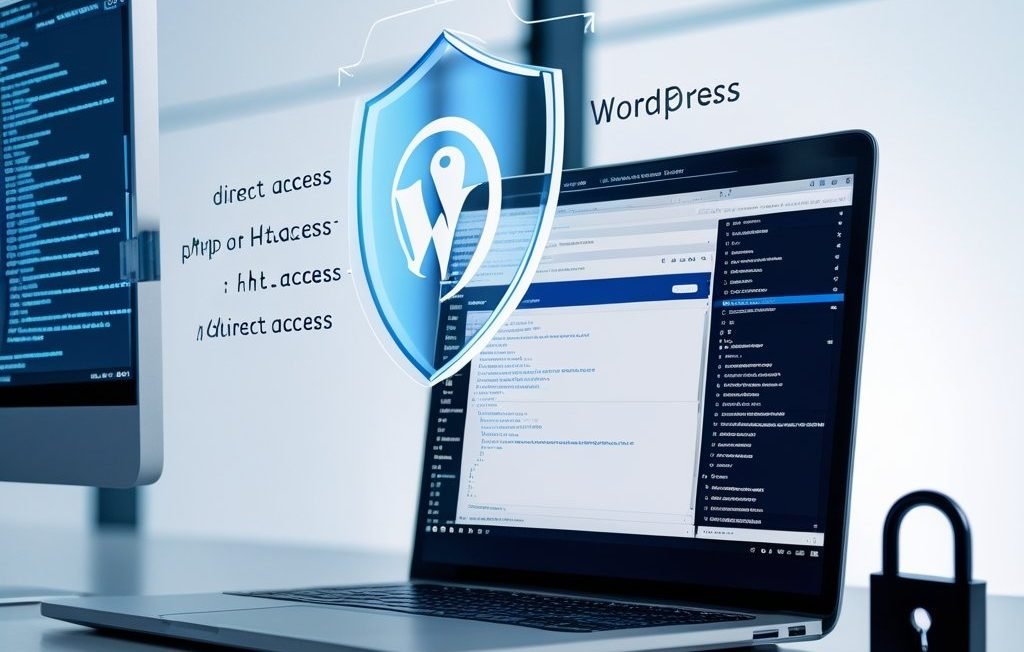
Is your WordPress website vulnerable to hackers? If someone can access your PHP files, templates, or plugin folders directly through their browser, you’ve got a serious security problem. The good news? Learning how to prevent direct access WordPress files is easier than you think.
In this guide, I’ll show you exactly how to prevent direct access WordPress files and protect your website from unauthorized users. Whether you’re running a blog, online store, or business website, these simple security measures will keep your site safe. No technical expertise needed—I’ll walk you through everything step by step.
1. Why You Need to Prevent Direct Access in WordPress
Let me explain what “direct access” means in simple terms.
Normally, when someone visits your WordPress site, they see your homepage, blog posts, or products—the content you want them to see. But here’s the problem: if your site isn’t protected, hackers can type special URLs into their browser and access files they shouldn’t see.
For example, they could access:
- Your theme files directly
- Plugin configuration files
- Upload directories with sensitive documents
- PHP files that run important functions
- Database backup files
Why is this dangerous?
When hackers access these files directly, they can:
- Find security vulnerabilities in your code
- Download sensitive information
- Discover your site structure and weak points
- Execute malicious code
- Steal user data or payment information
- Take over your entire website
Real-world example:
Imagine you upload a PDF with customer information to your WordPress media library. Without proper protection, someone could guess the URL (like yoursite.com/wp-content/uploads/customers.pdf) and download it directly—without ever logging into your site.
That’s why you need to prevent direct access WordPress files right now.
2. Understanding WordPress File Structure
Before we protect your files, you need to understand how WordPress organizes them.
Your WordPress installation has several important folders:
wp-content folder – This holds all your themes, plugins, and uploaded files. It’s the most vulnerable because it contains customizable content.
wp-includes folder – This contains core WordPress files that make your site work. These should never be accessed directly.
wp-admin folder – This is your dashboard area. Only logged-in administrators should access this.
Root directory – This contains important files like wp-config.php (your database connection details) and .htaccess (your site rules).
Hackers love targeting these folders because they often contain valuable information or security holes. That’s exactly what we’re going to lock down.
3. Method 1: Protect Files Using .htaccess Rules
The .htaccess file is like a security guard for your WordPress site. It sits in your root directory and controls who can access what. This is the most powerful way to prevent direct access WordPress files.
Finding Your .htaccess File:
Log into your hosting account and open the File Manager (or use FTP software like FileZilla). Navigate to your WordPress root directory—the main folder where WordPress is installed.
Look for a file called .htaccess. Don’t see it? That’s because it starts with a dot, which makes it hidden. In File Manager, click “Settings” and enable “Show hidden files.”
Important warning: The .htaccess file is powerful. One mistake can break your entire site. Before making changes, download a backup copy to your computer.
Basic Protection Code:
Right-click .htaccess and choose “Edit.” Add this code at the bottom:
# Prevent direct access to PHP files
<FilesMatch "\.php$">
  Order Allow,Deny
  Deny from all
</FilesMatch>

# Allow access to specific files that need to work
<FilesMatch "(index\.php|wp-login\.php|wp-cron\.php|xmlrpc\.php)$">
  Allow from all
</FilesMatch>
This code blocks direct access to all PHP files except the ones WordPress needs to function.
Protecting Specific Folders:
Want to protect your uploads folder? Create a new .htaccess file inside wp-content/uploads/ with this code:
# Prevent PHP execution in uploads
<Files *.php>
deny from all
</Files>
This stops hackers from uploading malicious PHP files to your uploads folder and running them.
Protecting wp-config.php:
Your wp-config.php file contains your database password. Add this to your main .htaccess:
# Protect wp-config.php
<files wp-config.php>
order allow,deny
deny from all
</files>
Save the file and test your website. If everything works normally, congratulations—you’ve just secured your site!
If something breaks: Don’t panic. Delete the code you just added or restore your backup .htaccess file. Your site will work again immediately.
4. Method 2: Add Security Code to Your Theme Files
Another effective way to prevent direct access WordPress files is by adding a simple security check to your PHP files. This method works great for theme and plugin files.
The Magic Security Line:
At the very top of any PHP file you want to protect, add this single line:
<?php
if (!defined('ABSPATH')) exit;
?>
What does this do?
ABSPATH is a special constant that WordPress defines when it loads properly. If someone tries to access your PHP file directly (bypassing WordPress), ABSPATH won’t be defined, and the script immediately stops running with exit.
It’s like a bouncer checking for a VIP pass. No pass? You’re not getting in.
Where to Add This:
You should add this line to:
- Custom theme files you’ve created
- Template files in your child theme
- Custom plugin files
- Any PHP file in wp-content that you control
Example in a real file:
Let’s say you have a custom template file called custom-page.php. Here’s how it should look:
<?php
if (!defined('ABSPATH')) exit; // Prevent direct access

// Your template code starts here
get_header();
// Rest of your code...
?>
Important notes:
Don’t add this to WordPress core files in wp-includes or wp-admin. Those files already have protection, and you shouldn’t modify core files anyway (updates will overwrite your changes).
Do add this to any custom code you create or files in your child theme.
This method is simple, effective, and works even if .htaccess fails or isn’t available on your server.
5. Method 3: Use Security Plugins to Block Direct Access
Not comfortable editing code? No problem. Security plugins can prevent direct access WordPress files with just a few clicks.
Best Security Plugins:
- Wordfence Security – Free and extremely popular
- Sucuri Security – Great for beginners
- iThemes Security – User-friendly with good protection
- All In One WP Security – Comprehensive and free
I’ll show you how to set up Wordfence since it’s the most popular.
Installing Wordfence:
Go to your WordPress dashboard. Click Plugins → Add New.
Search for “Wordfence Security.” Click Install Now, then Activate.
Setting Up File Protection:
After activation, click on “Wordfence” in your sidebar. You’ll see several options.
Click on “Firewall” and then “Manage Firewall.” Enable the Web Application Firewall. Choose “Extended Protection” for maximum security (this might require adding code to .htaccess, but Wordfence will do it automatically).
Blocking Direct Access:
Go to Wordfence → All Options. Scroll down to “Brute Force Protection.”
Enable these settings:
- “Prevent discovery of usernames through ‘/?author=N’ scans”
- “Prevent users from logging in using ‘admin’ username”
- “Immediately block fake Google crawlers”
Under “Advanced Options,” enable:
- “Hide WordPress version”
- “Disable code execution in uploads directory”
Click “Save Changes” at the bottom.
Additional Protection with iThemes Security:
If you prefer iThemes, install it the same way. After activation:
Go to Security → Settings → File System.
Enable “Disable PHP in Uploads.” This prevents hackers from executing malicious files they might upload.
Go to Security → Settings → WordPress Tweaks.
Enable “Filter suspicious query strings” and “Disable XML-RPC” (unless you need it for specific integrations).
The Advantage of Plugins:
Security plugins do more than just prevent direct access. They also:
- Block malicious login attempts
- Scan for malware
- Monitor file changes
- Protect against brute force attacks
- Send you alerts about security issues
The downside? Plugins can slow down your site slightly. But the protection is worth it.
6. Method 4: Configure Server-Level Protection
Server-level protection is the strongest defense because it works before WordPress even loads. This method requires access to your hosting control panel.
For Apache Servers (Most Common):
We already covered .htaccess, which is Apache’s configuration file. But you can add even more protection.
In your .htaccess, add this comprehensive security code:
# Disable directory browsing
Options -Indexes

# Protect important files
<FilesMatch "^(wp-config\.php|php\.ini|php5\.ini|readme\.html|license\.txt)">
Order Allow,Deny
Deny from all
</FilesMatch>

# Block access to include-only files
<IfModule mod_rewrite.c>
RewriteEngine On
RewriteBase /
RewriteRule ^wp-admin/includes/ - [F,L]
RewriteRule !^wp-includes/ - [S=3]
RewriteRule ^wp-includes/[^/]+\.php$ - [F,L]
RewriteRule ^wp-includes/js/tinymce/langs/.+\.php - [F,L]
RewriteRule ^wp-includes/theme-compat/ - [F,L]
</IfModule>
This code:
- Stops people from browsing your directories
- Protects critical configuration files
- Blocks access to WordPress internal files
- Prevents direct access to theme compatibility files
For Nginx Servers:
If your host uses Nginx (less common but growing), you’ll need to add rules to your nginx.conf file or site-specific configuration.
Here’s basic Nginx protection code:
# Deny access to sensitive files
location ~* /(wp-config\.php|readme\.html|license\.txt) {
    deny all;
}

# Deny access to PHP files in uploads
location ~* /wp-content/uploads/.*\.php$ {
    deny all;
}

# Prevent directory listing
location / {
    autoindex off;
}
You’ll need to contact your hosting support to add this, as most users don’t have direct access to Nginx configuration files.
Cloudflare Page Rules (Bonus Protection):
If you use Cloudflare (a free service that speeds up and protects your site), you can add page rules:
- Log into Cloudflare
- Select your domain
- Go to Rules → Page Rules
- Create a rule:
yoursite.com/wp-content/uploads/*.php - Set it to “Deny” or “Browser Integrity Check”
This blocks PHP execution at the CDN level before requests even reach your server.
7. Protecting Specific WordPress Areas
Different parts of your WordPress site need different protection strategies. Let me show you how to prevent direct access WordPress specific areas that hackers love to target.
Protecting Your Uploads Folder:
Your uploads folder (wp-content/uploads/) is a common target. Hackers try to upload malicious files here.
Create a blank file called index.php inside wp-content/uploads/ with just this:
<?php
// Silence is golden.
?>
This prevents directory listing. Even if someone accesses the folder URL, they see nothing.
Protecting Plugin Folders:
Many security breaches happen through vulnerable plugins. While you can’t prevent all plugin vulnerabilities, you can limit direct access.
Add this to your main .htaccess:
# Block plugin direct access
<IfModule mod_rewrite.c>
RewriteEngine On
RewriteBase /
RewriteRule ^wp-content/plugins/(.*\.php)$ - [R=404,L]
</IfModule>
This returns a 404 error when someone tries to access plugin PHP files directly.
Protecting wp-admin:
Your admin area should only be accessible to you. Add IP-based restrictions to wp-admin/.htaccess:
# Restrict wp-admin access to specific IPs
<Files wp-login.php>
order deny,allow
deny from all
# Replace with your actual IP address
allow from 123.456.789.012
</Files>
Replace 123.456.789.012 with your actual IP address (Google “what’s my IP” to find it).
Warning: If you have a dynamic IP (changes frequently), this method might lock you out. Use it only if you have a static IP address.
Protecting Theme Files:
If you have a custom theme with sensitive functionality, add this to your theme’s functions.php:
// Prevent direct access to theme files
defined('ABSPATH') or die('Direct access not permitted');
Put this at the very top of your functions.php file.
8. Testing Your Security Settings
After implementing protection, you need to test if it actually works. Don’t assume—verify!
Simple Manual Testing:
Open a new browser window (or use incognito mode). Try accessing files directly by typing URLs like:
yoursite.com/wp-content/plugins/plugin-name/plugin-file.phpyoursite.com/wp-config.phpyoursite.com/wp-content/uploads/
If your protection works, you should see:
- 403 Forbidden error
- 404 Not Found error
- Blank page
- Access denied message
If you see the actual file content or code, your protection isn’t working.
Using Online Security Scanners:
Several free tools can test your WordPress security:
WPScan – Go to wpscan.com and enter your site URL. It checks for known vulnerabilities and direct access issues.
Sucuri SiteCheck – Visit sitecheck.sucuri.net and scan your site. It tests for malware and security problems.
Security Headers – Check securityheaders.com to see if your server headers are properly configured.
These tools give you a security grade and tell you what needs fixing.
Check Your Error Logs:
Access your hosting control panel and check error logs. Look for suspicious 403 or 404 errors. Lots of these errors from the same IP address might indicate someone’s trying to probe your site.
Test Your Site Functionality:
After adding protection, browse your site normally:
- Visit different pages
- Log into your admin area
- Upload a test image
- Check if forms work
- Test your contact page
If anything breaks, you know your security settings are too strict. Adjust them until everything works smoothly.
9. Common Mistakes to Avoid
Even with the best intentions, people make mistakes when trying to prevent direct access WordPress files. Here are the most common errors and how to avoid them.
Mistake 1: Blocking Too Much
Some people get overzealous and block everything, including files WordPress needs to function. Then they wonder why their site broke.
Solution: Only block files that don’t need public access. Always leave these accessible:
- index.php (in root directory)
- wp-login.php
- wp-cron.php
- Admin-ajax.php (needed for AJAX features)
Mistake 2: Not Testing Changes
You add security code and assume it works. Then you discover weeks later that your contact form stopped working or images won’t upload.
Solution: Test immediately after making changes. Open your site in a new browser and check all functionality.
Mistake 3: Forgetting to Backup
You edit .htaccess, make a typo, and suddenly your entire site shows a 500 Internal Server Error. Without a backup, you’re stuck.
Solution: Always download a backup of any file before editing it. Keep it on your computer until you’re sure the changes work.
Mistake 4: Using the Wrong Code for Your Server
Apache and Nginx use completely different syntax. If you paste Apache code on an Nginx server, nothing happens (or worse, your site breaks).
Solution: Ask your hosting provider which server type you have. Use the correct code for your server.
Mistake 5: Hardcoding Your IP Address Without Understanding Dynamic IPs
You lock wp-admin to your IP address, but your internet provider changes your IP daily. Now you can’t access your own admin area.
Solution: Only use IP restrictions if you have a static IP address. Otherwise, use other security methods.
Mistake 6: Relying Only on Plugins
Security plugins are great, but they’re not perfect. If a plugin has a bug or gets deactivated, your protection disappears.
Solution: Use multiple layers of security. Combine plugins with .htaccess rules and proper file permissions.
Mistake 7: Setting Wrong File Permissions
Some tutorials tell you to set all files to 444 (read-only). Then WordPress can’t write to files when needed, breaking updates and functionality.
Solution: Use standard WordPress permissions:
- Folders: 755
- Files: 644
- wp-config.php: 440 or 400 (extra protection)
10. Maintaining Long-Term Security
Security isn’t a one-time task. You need ongoing maintenance to keep your site protected.
Monthly Security Checklist:
Do these tasks once a month:
- Update Everything – WordPress core, themes, and plugins. Updates often include security fixes. Go to Dashboard → Updates and install everything.
- Check User Accounts – Go to Users and delete any accounts you don’t recognize. Make sure all users have strong passwords.
- Review Security Logs – If you use Wordfence or similar plugins, check the activity log. Look for suspicious login attempts or blocked attacks.
- Scan for Malware – Run a full security scan using your security plugin. Clean up any infections immediately.
- Test Backups – Make sure your backup system is working. Download a recent backup and verify it’s complete.
Set Up Security Monitoring:
Configure your security plugin to email you when:
- Someone logs in as administrator
- Files are changed
- Multiple failed login attempts occur
- Your site goes down
This way, you’ll know immediately if something’s wrong.
Keep Learning:
WordPress security evolves constantly. Hackers find new methods, and security experts develop new defenses.
Follow these resources to stay informed:
- WPBeginner Security section
- Wordfence Blog
- WordPress.org Security announcements
When to Hire Professional Help:
If your site handles sensitive data (customer information, payments, medical records), consider hiring a WordPress security expert to audit your site.
Professional security audits cost $200-$1000 but can prevent disasters that cost much more.
Conclusion
Learning how to prevent direct access WordPress files is crucial for protecting your website from hackers and unauthorized users. We’ve covered five proven methods—from simple .htaccess rules to powerful security plugins.
Here’s your action plan:
Start with Method 1 (htaccess protection) if you’re comfortable with basic code. It’s free and highly effective.
Use Method 3 (security plugins) if you want an easier solution with ongoing protection. Wordfence or Sucuri are excellent choices.
Combine multiple methods for maximum security. Use htaccess rules AND a security plugin AND proper file permissions.
Don’t wait until you get hacked. Take 15 minutes today to implement at least one of these methods. Your future self will thank you when your site stays safe while others get compromised.
Remember: a secure WordPress site isn’t just about preventing direct access. It’s about protecting your business, your customers, and your reputation.
Start securing your site now, and sleep better knowing your WordPress website is properly protected!

Zeeshan is a seasoned web developer with over 8+ years of experience, specializing in WordPress, Themosis, and Laravel. customized web solutions. Through his website, zeeshanwebexpert.com, Zeeshan offers professional web services, ensuring long-term solutions for clients.